

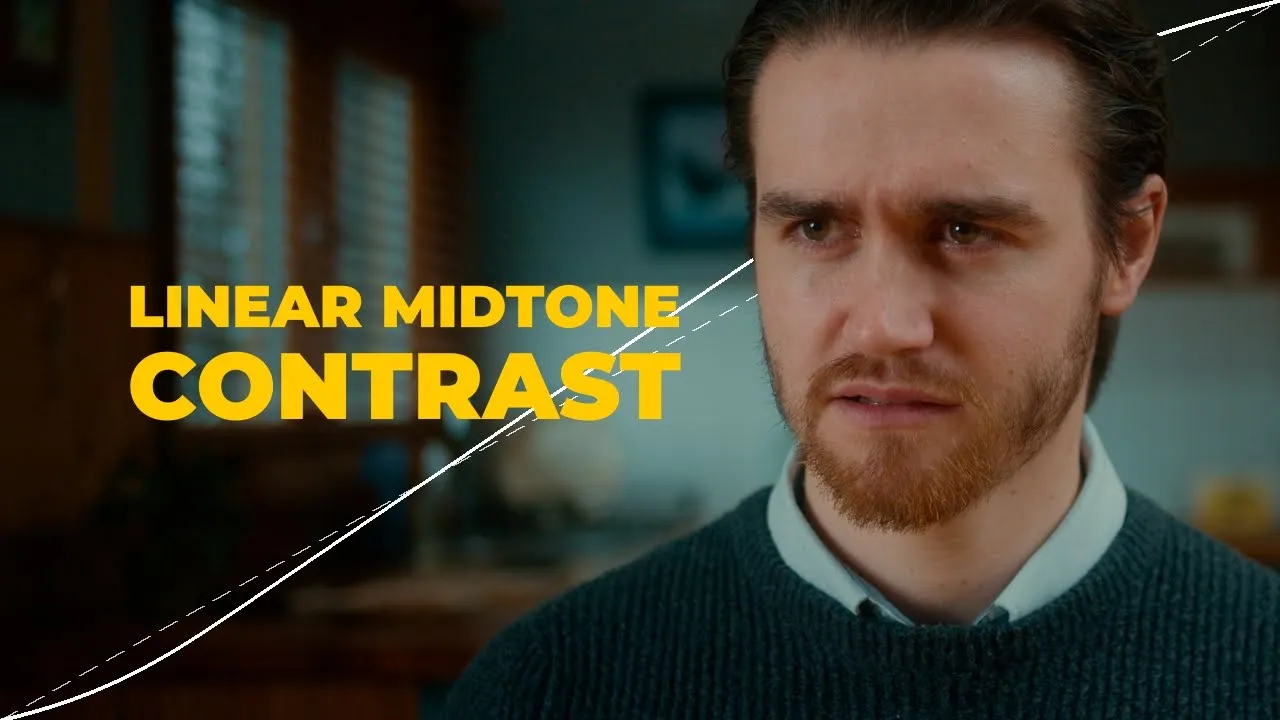
Contrast
Shape The Curve
£25.00
Current version
2
TYPE
Look Development
dESCRIPTION
Contrast is a powerful tool for building custom S-curves using a set of simple, refined, and intuitive controls. It gives you full creative flexibility while intelligently managing other curve elements under the hood to ensure your adjustments remain balanced and visually consistent across your project. With an easy-to-read overlay curve for added clarity, Contrast makes it effortless to see exactly how each control shapes your image — perfect for creating expressive, reliable looks with confidence.
See The Highlights
Contrast gives you the freedom to shape expressive tonal curves, while managing the parts of the curve that should remain stable — keeping your adjustments controlled, yet filled with creative character.
Parametric Curve Control
In Resolve, curves are often shaped by hand — but this freedom comes with a lack of constraint that can lead to undesirable side-effects at the project level. Contrast offers just the right amount of control, letting you shape the most creatively rich part of the tonal curve, while locking the aspects that should stay fixed — protecting you at a global level.
Transfer Curve Aware
Once your transfer curve is input into the tool, it becomes aware of the correct middle grey value for your working log space, and can rework the curve under the hood to ensure middle grey is preserved.
Watch the full breakdown
Explore every feature, the latest updates, and real-world examples in action.
Questions & Answers
What is the purpose of Contrast?
Contrast parameterises tonal curve control, providing broad flexibility in shaping an S-curve while maintaining middle grey and preserving a linear midtone slope.
What colour space / transfer curve is Contrast designed for?
Contrast can work in DaVinci Intermediate / DaVinci Wide Gamut, Arri Log C3 / Arri Wide Gamut 3, and ACEScct / AP1.
Where does Contrast fit into my node tree?
Contrast is best applied at the scene or project level to shape the overall look, while still in scene-referred space before any conversion to display-referred space. Its placement among other scene- or look-based tools is flexible and ultimately a creative choice.


