


Palette
Three in One
£35.00
Current version
4
TYPE
Look Development & Colour Grading
dESCRIPTION
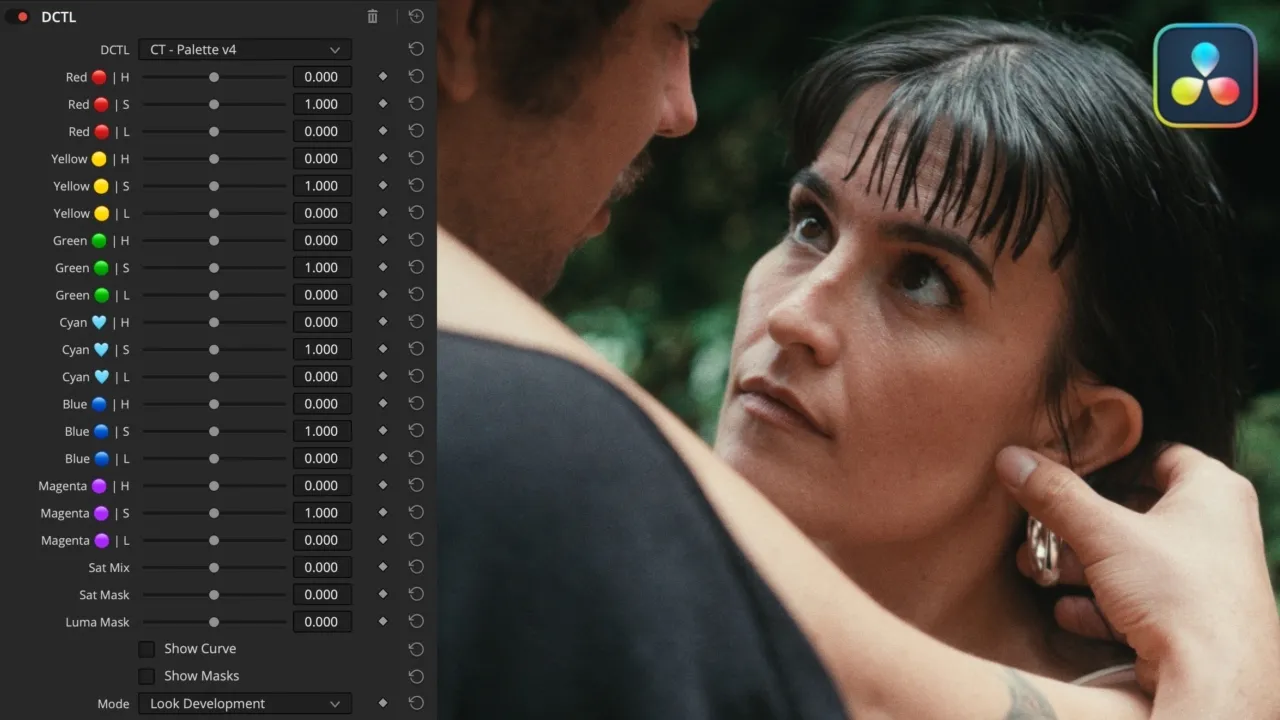
Palette is a unified tool combining the functionality of Hue vs Hue, Hue vs Saturation, and Hue vs Luminance into one intuitive interface, offering smooth, spline-based hue adjustments across six primary colour regions: red, yellow, green, cyan, blue, and magenta. It enables clean hue rotations, hue saturation control, and hue density adjustments—ideal for maintaining a consistent look throughout a project—while allowing users to observe these changes via all three hue vs curves as overlays, making the process highly intuitive. These features facilitate the creation of muted or stylised looks, shape the overall palette, and establish a bold yet cohesive visual identity for your project, all while ensuring fluid transitions and preserving image integrity.
See The Highlights
Palette gives you intuitive control over the relationships between hues, making it easy to refine, reshape, and stylise the overall colour palette while keeping transitions smooth and cohesive.
Smooth Curves
Palette supports modification of the six primary and secondary colours — red, green, blue, cyan, magenta, and yellow — each representing a point on the tool's three internal curves: hue vs hue, hue vs saturation, and hue vs luminance. Each is a highly smooth spline curve, ensuring smoothness throughout the adjustment.
Hybrid Saturation
Palette uses the hybrid saturation method for its Hue vs Saturation slider, along with a Sat Mix control, letting you control the amount of tonal contrast formed between hues as saturation is adjusted.
Tetra Mode
Palette includes an additional mode that maps all controls to a different method of colour volume manipulation, better suited to shot-level colour grading. It provides more precise control over each of the six hue vectors, with minimal spill into neighbouring colours.
Watch the full breakdown
Explore every feature, the latest updates, and real-world examples in action.
Questions & Answers
What is the purpose of Palette?
Palette combines all three classic “Hue vs” curves into a single tool, providing control points for all six major colour vectors.
What colour space / transfer curve is Palette designed for?
Palette is not colour space aware and can therefore be used in any colour spaces, though results will vary based on the colour space used.
Where does Palette fit into my node tree?
Palette is best applied at the scene or project level to shape the overall look, while still in scene-referred space before any conversion to display-referred space. Its placement among other scene- or look-based tools is flexible and ultimately a creative choice.


